Edge and Internet Explorer Web Browser Basics
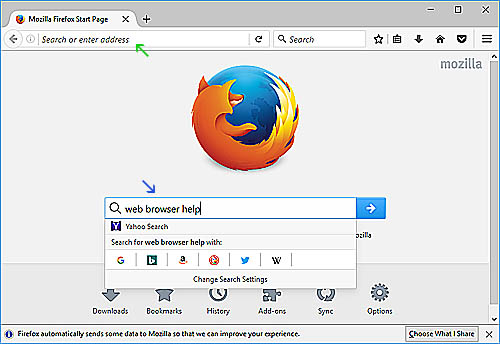
In the example below, using FireFox, the green arrow indicates the address bar. The blue arrow indicates the search bar. This is the FireFox homepage. If you use Google as a homepage then you will see the main google search page. The address bar is always in the same place on your web browser. Search bars at websites sometimes vary.
How to Remove a Ransomware Script Page.
Scenario: You are innocently surfing the internet. You click what appears to be an innocuous friendly link and you inadvertantly land on a page that freezes your web browser. You cannot leave the page, you cannot close the web browser. The page is saying that you have viruses or trojans or other serious computer problems. It provides you with a phone number to call to resolve the issues.
Do not ever call those phone numbers. They want money to fix the issue they caused for you. They want your credit card number or will ask you to go get a pre-paid debit card to get the issue fixed.
Needless to say, thousands of people around the world are having this issue right now at this very moment. And they will never land here because their web browser is already stuck. Unless... they have a second web browser available and they think to open it up.. This page is also accessible via your phone.
That's a great reason to always have a second or even third web browser installed on your computer isn't it? And I do highly recommend it.
Click the links below to install an extra web browser. Since you probably already have Internet Explorer or Edge, there are 2 well known choices remaining:
Mozilla FireFox and Google Chrome
Here's the good news. Anything that simply locks up a web browser is a script. Let's get rid of that script.
First, right click on the taskbar and select Task Manager.
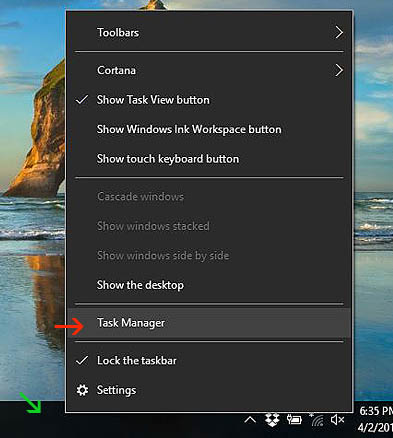
Right click on any blank area of the task bar (green arrow), you get a pop-up. Select Task Manager (red arrow).
You'll see a list of programs that were running when this happened, Look in the list for the name of the web browser that is stuck on the ransomware page. In this case, we were using Google Chrome. Yes, every web browser out there that has javascript enabled is susceptible to this. You can fully disable javascript but your experience browsing the web would really suffer. These types of scripts aren't really all that malicious, they just look that way. Select your web browser from the list then click 'End Task'. The web browser will close.
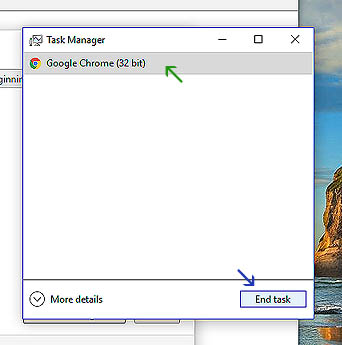
Select your web browser (green arrow), then click the 'End Task' button (blue arrow).
If you are using a version of Linux, open a terminal and type 'ps auwx | grep chrome', then 'kill (the pid) and it will kill the process.
If you were using Internet Explorer or Edge, or are not sure what web browser you are using but you are on a windows system, open the control and head to 'Network and Internet'. If you are not using IE, skip the next few steps, look below for your web browser version, either Firefox or Chrome.
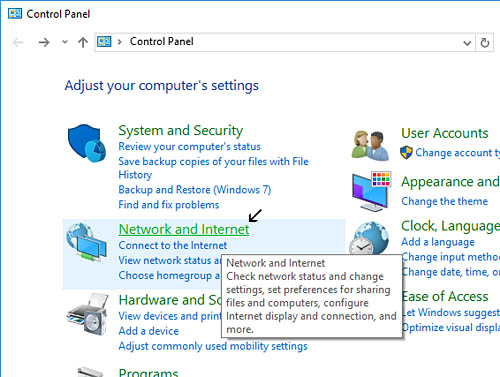
Click on 'Network and Internet' (arrow).
Next, click on 'Internet Options'
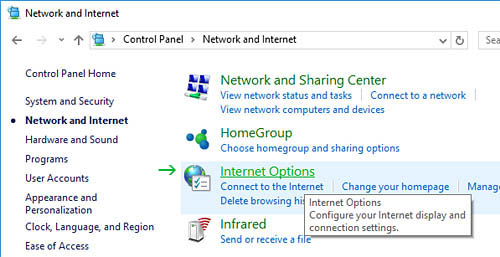
Click on Internet Options (green arrow)
A new window will open up. In the General tab, check the little box that says 'Delete browsing history on exit' (purple arrow). If you want to add technilogical.com or google.com as homepage tabs, enter that information as shown also (green arrow). Then those pages will be the available tabs when you reopen your web browser, just in case the script added something to redirect your homepage. You can set it back to msn.com or anything else when we are finished.
Then click the 'Delete' button (red arrow).
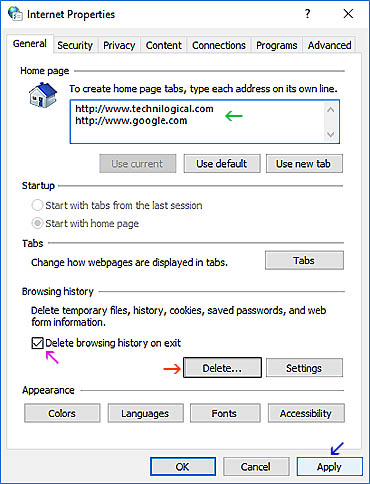
Check 'Delete browsing history on exit' (purple arrow). Add a known good homepage (green arrow). Click the 'Delete' button (red arrow).
A new window will open up. Make sure all the items in that window are checked like in the image below (red arrows). Then click the Delete button (green arrow).
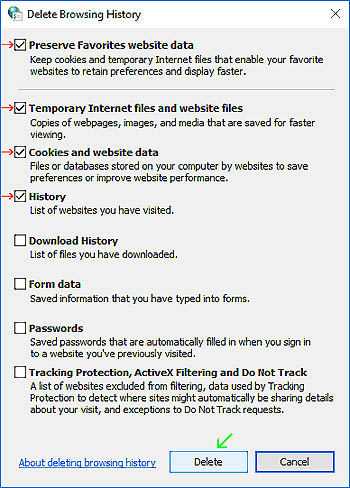
After you click 'Delete' and Windows finishes deleting the cached files, this window will close by itself.
Back in the main internet options window, click on the Security tab. Then select the Internet zone at top (blue arrow) by clicking on it. Then click the 'Custom level' button.
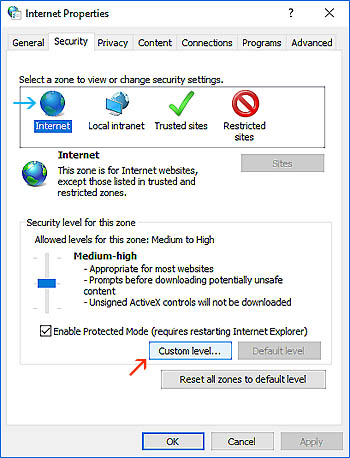
Select Internet zone at top (blue arrow). Then click the 'Custom level' button (red arrow).
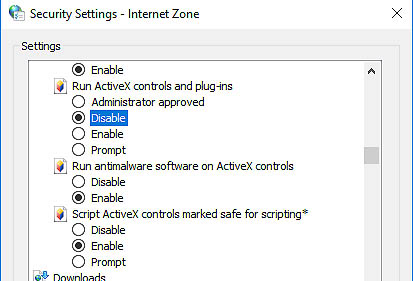
A box will pop up with option items. Scroll down through the list. You can disable ActiveX scripting, but this probably isn't the issue. Go ahead, disable it if you see it, as shown below.
Continue scrolling until you come to Scripting, Active Scripting. Disable this item.
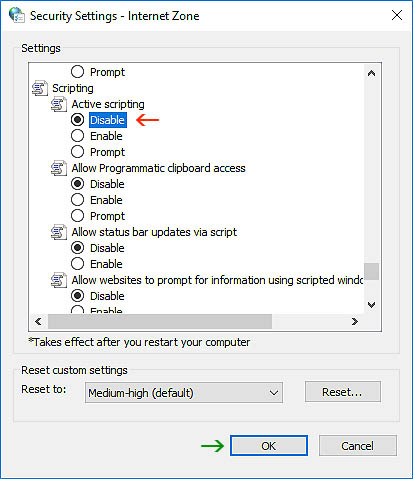
Disable Active scripting (red arrow), then click OK (green arrow).
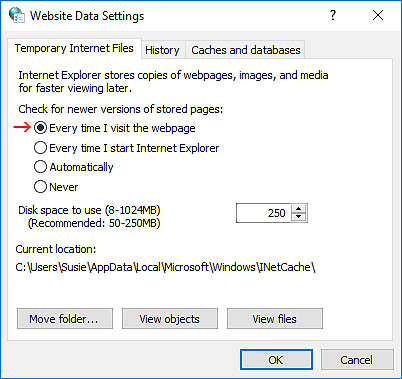
Back on the internet Properties window, click the 'Advanced' tab at right top. Scroll down until you see the option to 'Empty temporary Internet files folder when browser is closed'. Check the box for that item and the one directly above it that says 'Do not save encrypted pages to disk'. Click the 'Apply' button at bottom right, then click the 'OK' button.

Back on the internet Properties window, click the Apply button (blue arrow) at lower right again and then click the 'OK' button.
Click the Apply button and then click the 'OK' button.
Re-open your web browser. If all went well, the page it was stuck on should be gone. Try heading to Google and search for something to make sure everything is normal again.
If everything seems good, close the browser and let's re-enable your scripting so that pages with javascript will work again. Head back to Internet Options in Control Panel.
Look for the button that says 'Reset all zones to default level'. Click that button. You should be reset to default now with your cache cleared.
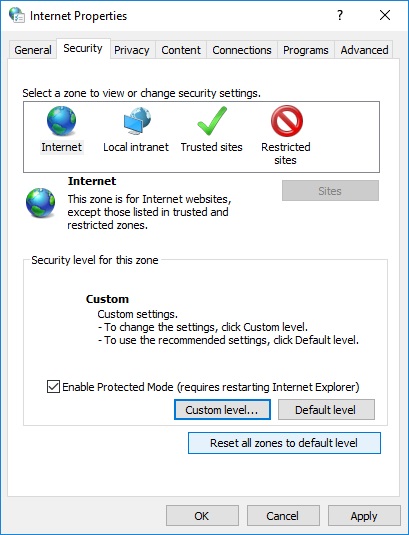
Click on 'Reset all zones to default level'.
Firefox Web Browser Basics
How to remove a ransomware script page in FireFox.
At upper right in the FireFox toolbar you will see a bar icon for settings. Click the bar icon (blue arrow). Then click 'Options' (red arrow).
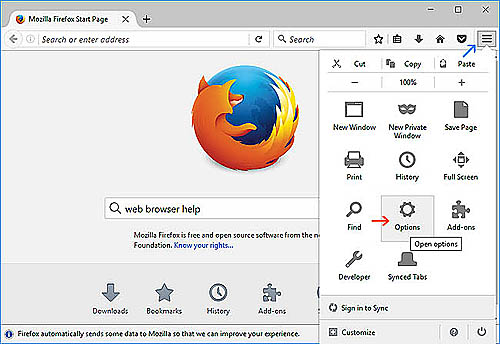
Click the bar icon (blue arrow). Then click 'Options' (red arrow).
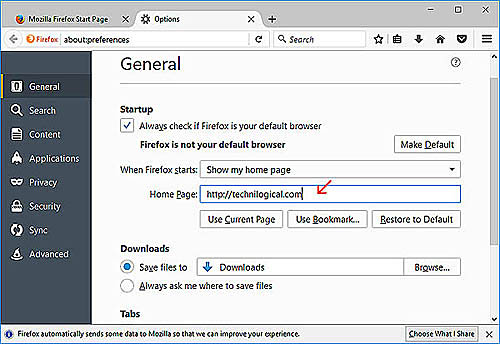
On the General tab, make sure your homepage resolves to a known good address you are familiar with (red arrow).
Click 'Advanced' at right (yellow arrow) and then click the 'Network' tab at top (blue arrow). Then click both 'Clear now' buttons on the right of the same page (red arrow, green arrow).
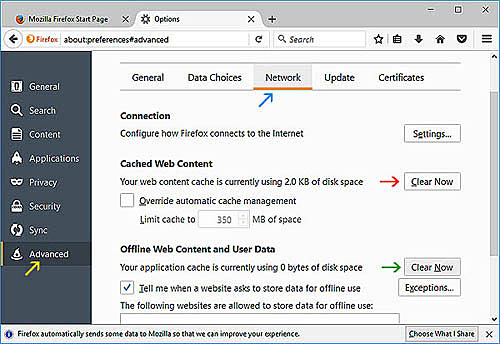
Click 'Advanced' (yellow arrow), then click 'Network' (blue arrow). Click 'Clear Now' (red arrow), click 'Clear Now' (green arrow).
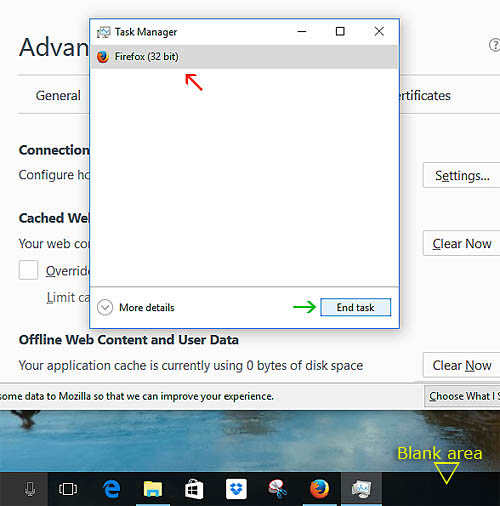
Right click on the taskbar, open Task Manager, select Firefox and then click 'End Task'.
Chrome Web Browser Basics
In Chrome, click the 3 vertical dots at top right (green arrow). That is your browser menu. In the drop down, click Settings (blue arrow)
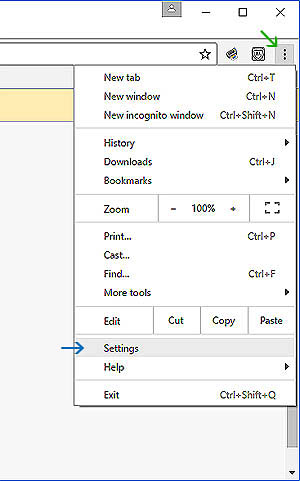
In the window that opens up, look for 'Show Advanced Settings' (blue arrow). Click that link.
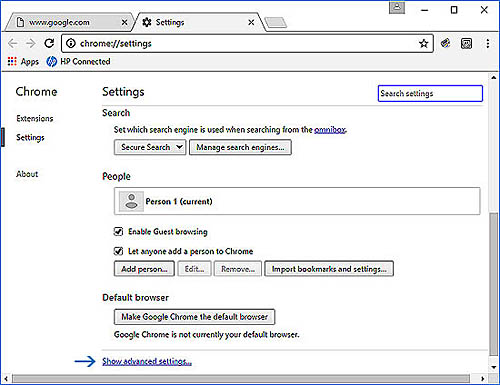
You will see an option that says 'Clear browsing data'. Click that button.
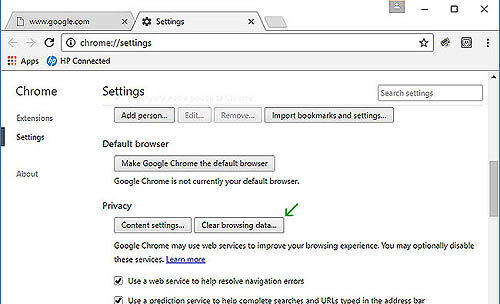
You will be presented with a pop up. Make sure all the items next to the red arrows in the image below are checked. Then click the 'Clear Browsing Data' button (green arrow).
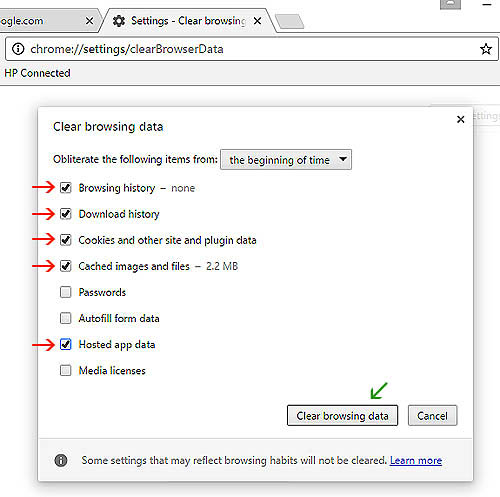
When Chrome is finished deleting the temporary internet files, right click on the taskbar, open Task Manager. Locate Chrome in your list of running applications, and then click 'End Task'.