The Diagnostic Dilemma
Where to Start?
So, your system has an issue or 5 and you have no idea of where to begin. What exactly is the control panel and how do we start to figure out what is wrong with the ethernet or the hard drive? Wait, how do we know it's the hard drive? At least you have an internet connection or you would not be reading this page.
You'll find a lot articles here, written in plain English, to help resolve your issues.
Initial Assessment
Let's try to determine what caused the issue. Some of the questions we need to ask include:
- Did the issue occur suddenly or is it the result of something else?
- Was the machine dropped?
- Has it been moved recently?
- Have new peripherals been added?
- How many peripherals are attached?
- How old is the machine?
- Was it working fine yesterday?
- Is the environment clean, is there dust in the vents?
- Did we install new software recently?
- Did we do other updates recently?
- Is this a power issue? Is the power button LED white, green or amber?
- Are there any blinking LED's?
- Can we hear the fans running?
- Is this a performance issue? Is the system hanging or locking up?
- Does the system shut down or reboot by itself?
- Does the machine blue screen and provide any stop codes?
- Does it boot all the way to Windows or do we get errors instead?
- What errors are we getting if we cannot get to Windows? (write them down or take a photo)
Windows System Help
One of the most common issues people request help for is their Internet Connection, WiFi or ethernet. Another common issue is bad behavior by MicroSoft Outlook. We'll address these and a few other common issues that are relatively easy to fix.
Notably, the one thing most people needing support with Windows issues did not do is make a Windows Recovery disk, ever. It is imperative that you have a Windows Recovery disk because Windows most always fails at one point or another. We will also cover this topic.
The Microsoft knowledge base is full of help articles for other common issues Windows users encounter. You can generally find help simply by Googling your issue.
Operating System re-installs can get complicated depending on the OS version, whether or not you need to, are able to, get the existing data (your personal files) off your disk first, whether you are upgrading or downgrading, etc, etc. You might want to contact us for help with that if you are completely overwhelmed by the prospect of OSRI (Operating System Re-Install) by yourself.
Another of the most common issues we are seeing recently, in 2017, are the Web Browser Ransomware hacks that lock up your screen suddenly while you are surfing the net and demand you call a phone number for help. DO NOT under any circumstances ever call those phone numbers. I will show you how to get rid of this problem.
The Windows Control Panel
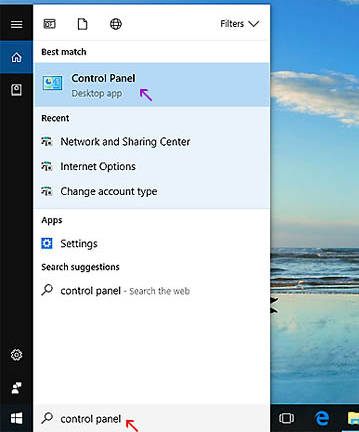
Type 'control panel' into the search bar where it says 'Ask me anything' (red arrow). Then, click on Control Panel higher up in the menu (purple arrow).
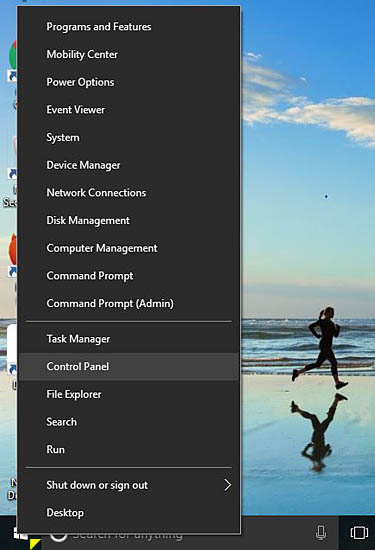
Right click on the Windows Logo Start button at the very bottom left of your screen (yellow triangle).
The control panel can be accessed 2 different ways in Windows 10. There is also a settings link in the start menu.
One way of getting to the control panel is by simply typing control panel in the search bar near the bottom left of your screen, just right of the Windows logo start button. A white pane will pop up as you start to type into the search bar and you will see various options as you type, finally narrowing down as your words become more specific.
Once we are inside the control panel we are given several options to choose from.
Another way of accessing the control panel is by right clicking on the Windows Logo Start button at the very bottom left of your screen (yellow triangle). Then, click on Control Panel higher up in the menu.
The right click system menu also gives you access to a lot of other system tools.
Make a Standard User Account
In this example we are going to head to Control Panel -> User Accounts and create a Standard (limited rights) user to make accessing the internet safer. A standard user account is much less likely to acquire malware because software installed from the standard user account cannot make changes to system files or properties.
To perform this task, we need to be logged into our administrative user account, which is the first account we created when Windows did setup as a new machine or at re-install.
Open the Control Panel Window. Click on 'User Accounts'.

Click on User Accounts
Inside the User Accounts Window, click on 'User Accounts' again.
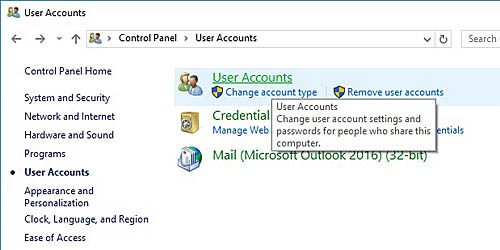
Click on User Accounts again.
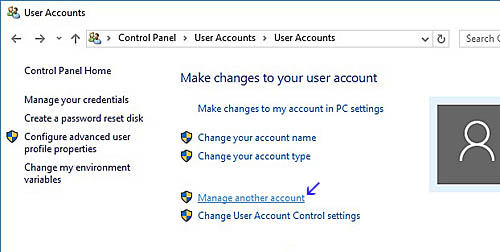
Click on 'Manage another account' (blue arrow).
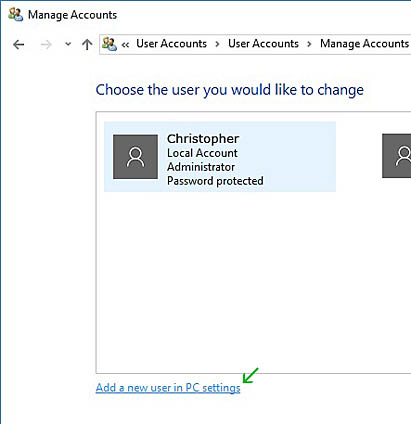
Click on 'Add a new user in PC settings' (green arrow).
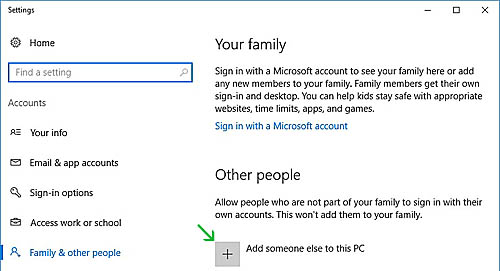
Click on 'Add someone else to this PC' (green arrow).
Give your new account a username (green arrow) and a password (red arrow). Give the account a password hint (blue arrow) in case you forget your password. Write your password down somewhere with pen and paper.
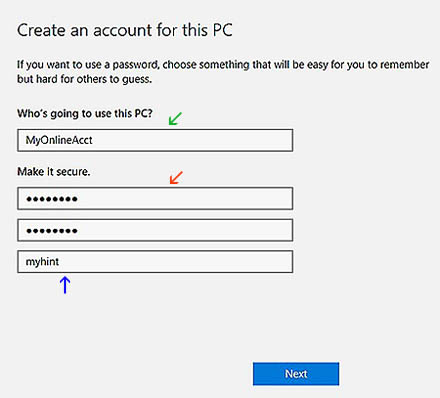
Fill in all fields and then click the 'Next' button.
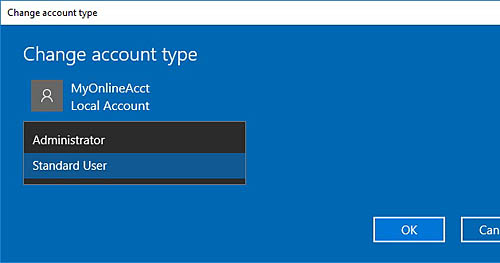
Select 'Standard' from the select options.
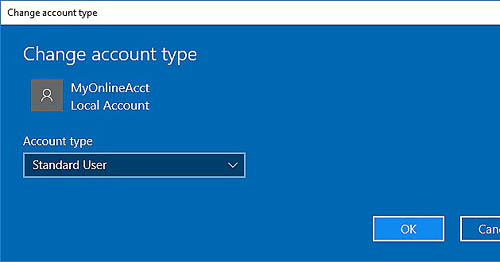
If Standard is selected, Click OK
Super. you now have a standard limited access account. This account will function like your adminstrator account and you will have access to all software installed on the system. The main difference is you cannot install/uninstall software or make system property changes from the standard user account. To do those things, you will still need to log into your main Administrator account now and then. If something doesn't seem to be working correctly, like wifi, you will need to check settings from the admin account. Otherwise you should not notice any difference between this account and the other.
As a note, you can also delete accounts from within the User Accounts panel. Windows will not let you ever delete the first Adminstrative account since that account is required by the system. However, downline, if you give this machine to someone else and had a good habit of generally always using a standard account to do your work and internet surfing, then you can easily delete that account before transfering the system to another person. Also, if the standard user account does get some sort of odd malware you can simply delete the whole account (after backing up your personal data!) and recreate it. If it gets sick inside the user account it's highly unlikely to be infectious to the root system (but not guaranteed!).
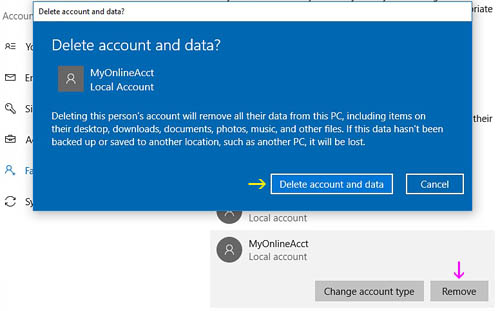
Select the account then click 'Remove' (purple arrow). You will be presented with a pop-up. Click the 'Delete account and data' button in the pop-up (yellow arrow).
System Tray
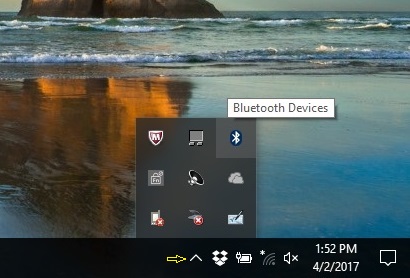
This is your 'system tray'. It contains icons that link to devices or programs on your system. You can access the system tray by clicking the icon in the task bar.
Command Prompt
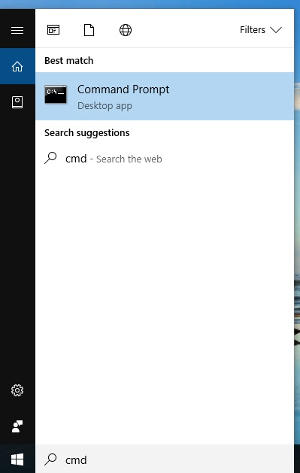
Type cmd into the search bar where it says 'Ask me anything'. Then, click on Command Prompt higher up in the menu.
Lets open the Command Prompt by typing 'cmd' into the search bar on your desktop.
The Command Prompt is useful for adminstrative tasks. We can get status on our internet connections here, for instance.
Windows Updates
How to turn updates off and on in Windows 10
There's a lot of complaining out there about not having the ability to turn Windows Updates off in Windows 10. This is not true. Although the option to control the updater is no longer available within the main Windows Updates interface, you can still turn updates on and off from inside the control panel, Adminstrative Tools.
Notice also in the picture below, that there is a search bar within the control panel itself (red arrow). Search here if you can't find system related tools.
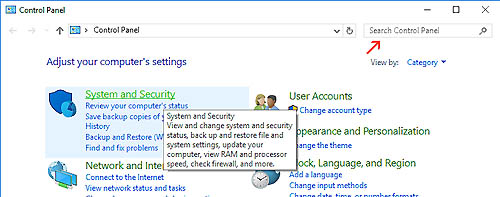
Open the Control Panel, click on 'System and Security'.
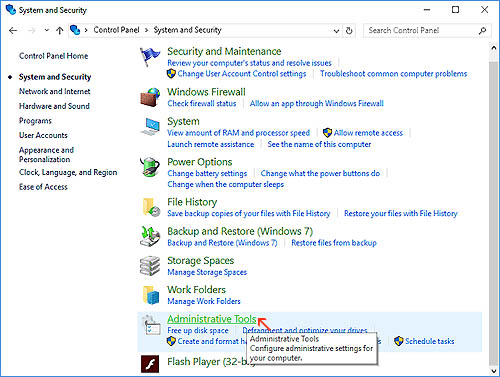
Inside the System and Security window, click on 'Administrative Tools' (red arrow).
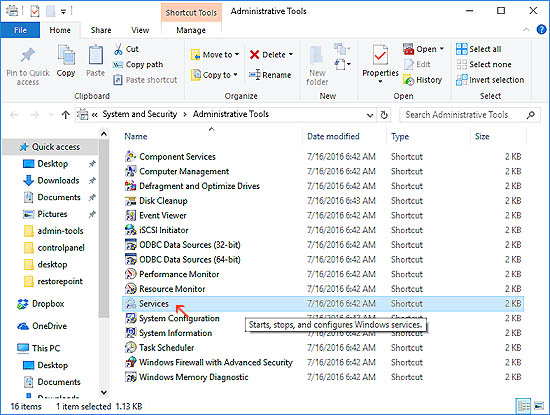
Inside the Administrative Tools window, click on 'Services' (red arrow).

1. Inside the Services window, click on 'Background Intelligent Transfer Service' (red arrow). A window will open for this service.
2. In the newly opened smaller window, click the 'Stop' button (orange arrow).
3. In the dropdown select, choose 'Disabled' (purple arrow).
4. Click Apply (green arrow).
5. Click OK (blue arrow). The smaller window will close.
We are not done yet, continue on to the next steps below.
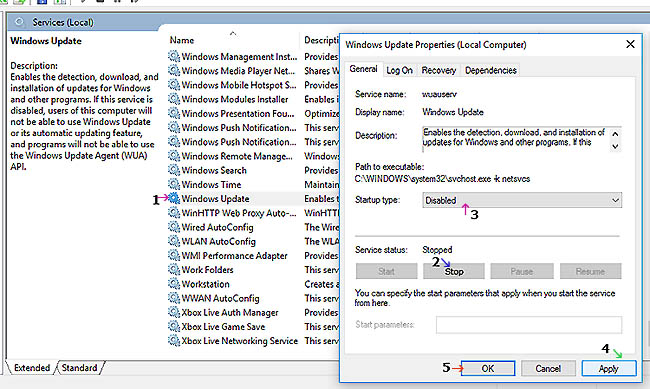
Inside the main Services window again, scroll down alphabetically to Windows Update
1. Click on 'Windows Update' (purple arrow). A window will open for this service.
2. In the newly opened smaller window, click the 'Stop' button (blue arrow).
3. In the dropdown select, choose 'Disabled' (magenta arrow).
4. Click Apply (green arrow).
5. Click OK (red arrow). The smaller window will close.
Now, we are finished. Windows Updates are turned off. To turn them back on, just follow these steps in reverse.
There are a few other items you might want to turn off in services for the sake of security. If you are not using these items, they should be turned off.
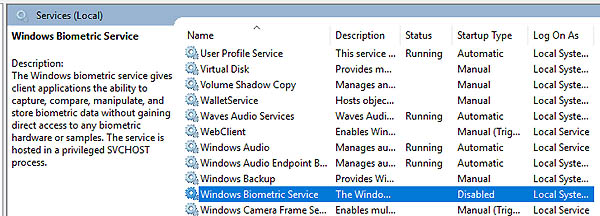
If you are not using facial recognition or a thumb print reader you might consider turning this Biometric Service item off. Just click on it and turn it off like we turned the above items off.

Remote Registry is rarely needed. This is a true security issue. Even if you have a tech remote in to help you, they will be using the onboard registry editor if they need to make changes to the registry.

Unless your system is a floor model in a store, you should turn the Retail Demo Service off.
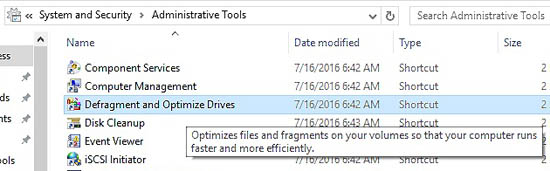
You may have noticed the Defragment and Optimize Drives tool is located inside Adminstrative Tools. Just as a note for more modern systems, you should NEVER defragment solid state drives. This tool will destroy a solid state drive in a heartbeat.